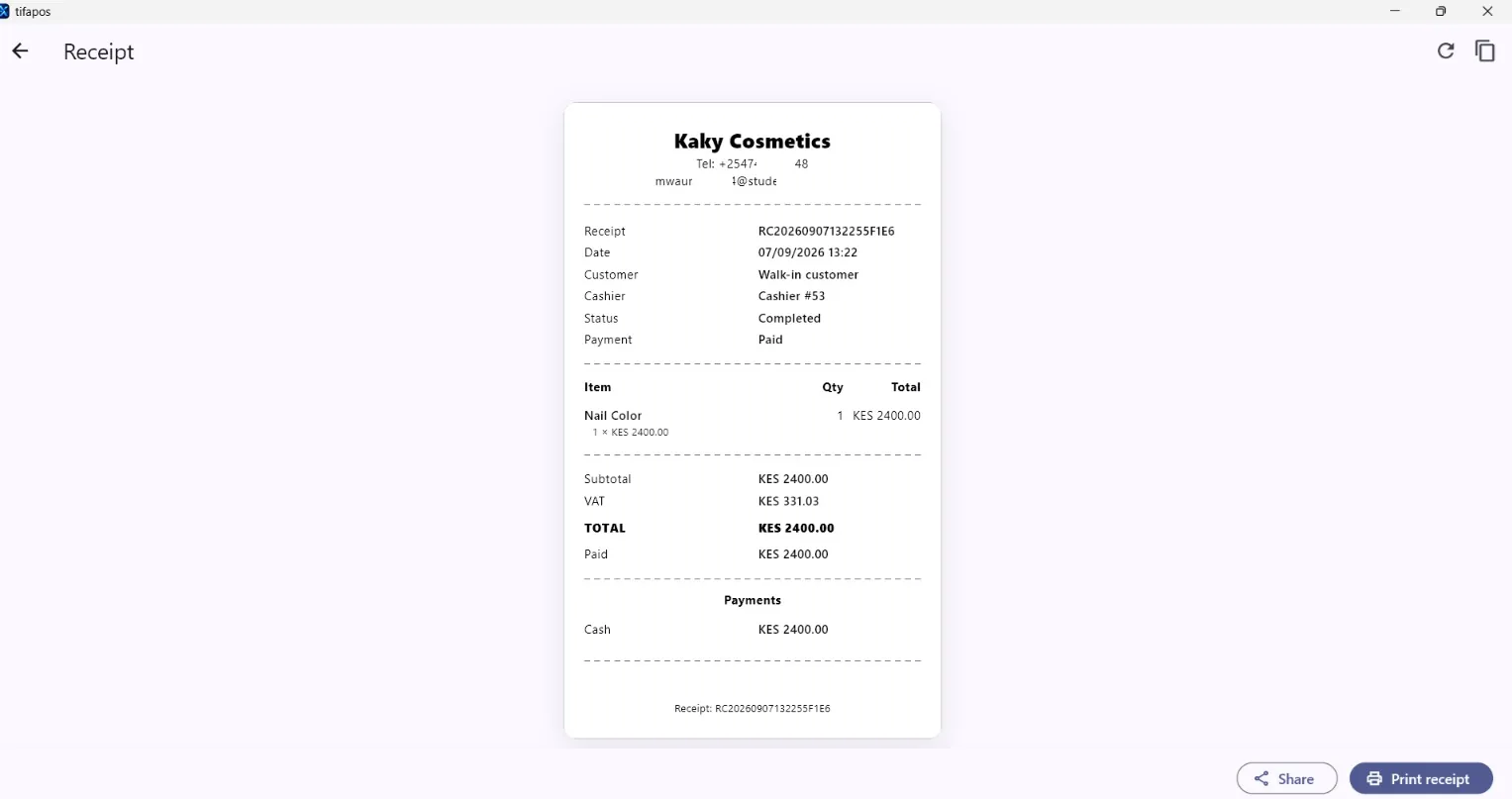
Step-by-step guide
Set Up a Receipt Printer in AiWeapX POS
Set up the printer once, then test it before serving customers.
1. Open receipt and printer settings
Go to Settings and open Receipt & Printer.
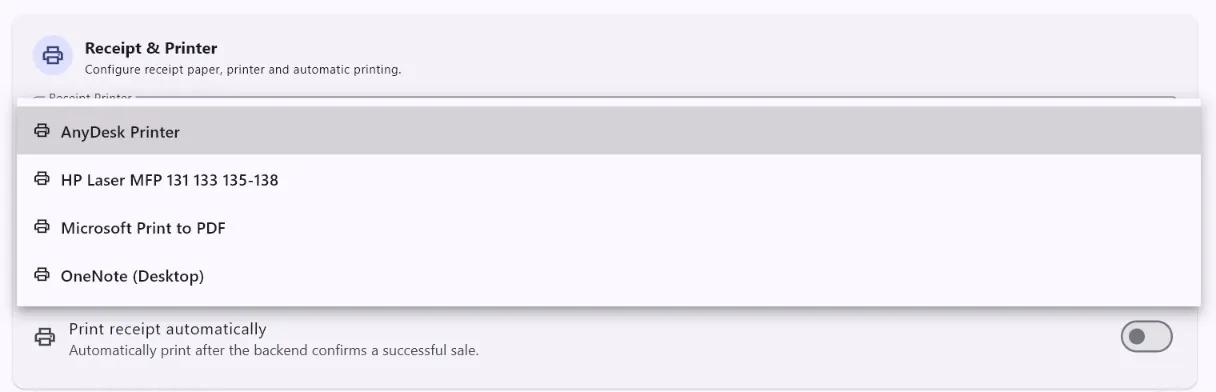
2. Choose printer settings
Select the printer and receipt options used by your business.
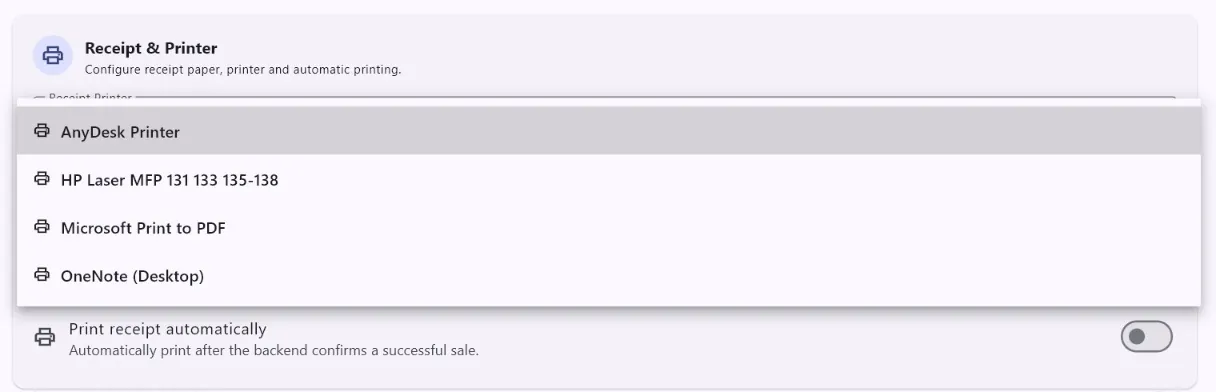
3. Test printing
Save the settings and print a test receipt. Confirm the paper width, text and totals are readable. Test Print.